
N-Able RMM Agent and Take Control Intune app for macOS
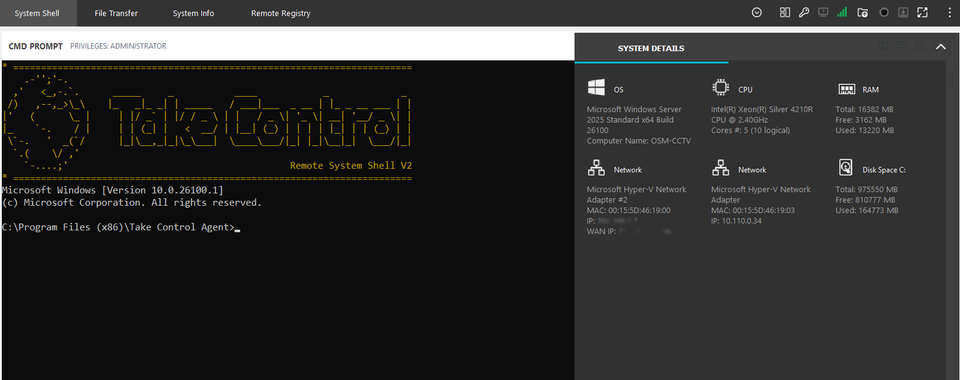
- Download the site agent installation from your N-Able N-Sight portal, which is a zip file.
- Extract the files from the zip file (install.pkg and settings.ini) and copy them into a subfolder on a Mac, e.g. Documents\agentfiles.
The problem with Intune apps is that you can only upload a single .pkg file so we need to package the install.pkg and settings.ini into a single .pkg file. - Run the following the following command form the Mac Terminal App, make sure you are running it from the documents folder, the below is a screenshot from mac and the command in text for copying.

This will build the agent.pkg from files you uploaded to the agentfiles folder. You'll notice the /var/tmp as install location, this is where Intune app will place our files. will use this path in the Post-install script section.
- Create macOS app (PKG) app in Intune and upload the agent.pkg file. Choose name and description and add N-Able as publisher, click Next to go to the Program tab,
- Copy the below to the Post-install script field:
#Path to the log file
log_file="/var/tmp/takecontrol.txt"
# run install
installer -verbose -pkg /var/tmp/install.pkg -target / >> "$log_file"
exit 0
- Set Minimum operating system of your choice in the Requirements tab.
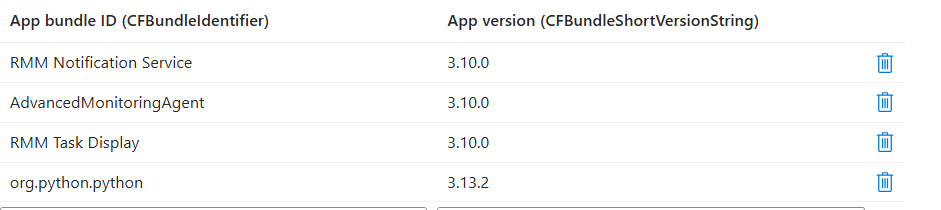
- These days the Detection rules tab should detect the content of the uploaded package and present you with Included apps, see the first screenshot below, otherwise you can use the identifier and version from the pkgbuild command for the App bundle ID.

Create the Assignments to your devices and enjoy!