
How to run Ghost Tinybird Web Analytics locally
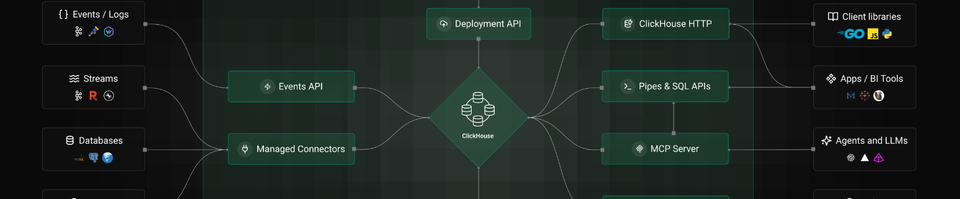
Ghost collects visitor events and streams them to Tinybird, which is built on ClickHouse for high performance, real-time aggregation. Tinybird handles ingestion pipelines, materialized views, and query APIs, while Ghost Admin fetches pre-aggregated analytics data via HTTP endpoints.
Tinybird runs in the cloud, and its free account tier is not sufficient to support Ghost analytic, not due to performance limitations, but because of the 1,000 requests per day limit. The next paid tier costs $25 per month, which is a significant jump in pricing.
However, Tinybird has Self managed regions, which means you can install Tinybird locally in a Docker container.
Tinybird is not open source, but according to Tinybird website and local licence; there do not appear to be significant functional limitations.
The following steps describe how to migrate from the Tinybird cloud service to a local installation. You can attempt to start locally from scratch, but it is significantly easier to configure the cloud deployment first and then migrate it locally.
- This guide assumes that you already have a self-hosted Ghost installation using the Ghost docker deployment. It also assumes that you have completed the Tinybird cloud deployment as described in the TINYBIRD.md documentation and that web analytics are functioning correctly.
- Install the Tinybird CLI, it requires Linux, but you can use WSL in windows environment. Connect to the Tinybird cloud and run the commands below to pull your workspace locally, you can also run "tb datasource export <datasource name>" commands to export existing data as a .json file, however I haven't tested export/import yet.
$ tb --cloud pull (this will pull the whole workspace to the local folder; datasources, pipes, endpoints, etc
- Install Tinybird local docker container
I assume you already created your Self managed region and you have your TB_INFRA env vars. You can insert the below service into your compose.yml file. Please note the healthcheck interval below, the default is 10s which creates excessive traffic between your container and Tinybird cloud and increases CPU usage.
NOTE: The data and metadata folders referenced in the volumes below will already exist from a standard Tinybird deployment. I renamed them and then copied contents to the new folders created by your local Tinybird container.
tinybird-local:
    image: tinybirdco/tinybird-local:latest
    container_name: tinybird-local
    platform: linux/amd64
    expose:
      - "7181"
    environment:
      - TB_INFRA_TOKEN=${TB_INFRA_TOKEN}
      - TB_INFRA_WORKSPACE=${TB_INFRA_WORKSPACE}
      - TB_INFRA_ORGANIZATION=${TB_INFRA_ORGANIZATION}
      - TB_INFRA_USER=${TB_INFRA_USER}
    healthcheck:
      interval: 60s
    volumes:
      - ./data/data:/var/lib/clickhouse
      - ./data/metadata:/redis-data
    restart: unless-stopped
- Another assumption is that you are running a reverse-proxy in front of your docker deployment, which is the default configuration for the Ghost docker compose setup.
You can use it to create an https endpoint for your Tinybird container, for example https://tinybird.yourdomain.com, SSL is required for authentication. - Now you can connect to your Tinybird container and deploy the workspace, make sure you run the below commands from the same folder where you pulled your cloud workspace:
$ tb --cloud deploy
- Login to your Tinybird cloud account: https://cloud.tinybird.co/ and select your self-managed region and newly created workspace, there you can get you Admin and Tracker tokens (in Tokens) and Workspace ID (in Settings) and replace your TINYBIRD_* env variables in your .env file. Also set the TINYBIRD_API_URL to your URL: https://tinybird.yourdomain.com.
- The final step is to replace the .tiny file, which was created during your initial Tinybird cloud deployment. The file is located in the docker volume called tinybird_home, replace it with the .tiny file found in the root folder of the workspace you pulled and deployed. You can now recreate your containers.
Overall, this process is not entirely straightforward, but the results are worthwhile.