
N-Able RMM Agent and Take Control Intune app for macOS
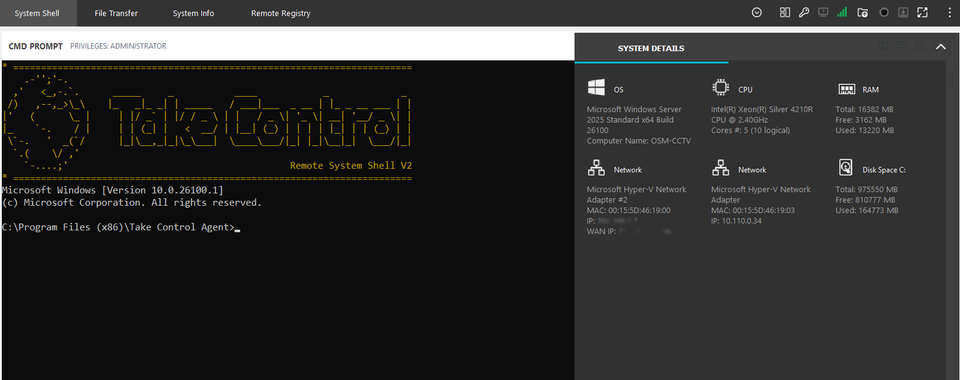
- Download the site agent installation from your N-Able N-Sight porta. The download is provided as a ZIP file.
- Extract the files from the zip file (install.pkg and settings.ini) and copy them into a subfolder on a Mac, for example: Documents/agentfiles.
The limitation with Intune apps is that you can only upload a single .pkg file, so we need to package install.pkg and settings.ini into a single .pkg file. - Run the following command form the Mac Terminal App. Make sure you are running it from the Documents folder. The screenshot below shows the command being executed on macOS, and the command is also provided in text for easy copying.

The command will build the agent.pkg from files you uploaded to the agentfiles folder. You'll notice /var/tmp is used as the installation location. This is where the Intune app will place our files. We will use this path later in the Post-install script section.
- Create macOS app (PKG) app in Intune and upload the agent.pkg file. Choose a name and description, add N-Able as publisher, and click Next to go to the Program tab,
- Copy the content below to the Post-install script field:
#Path to the log file
log_file="/var/tmp/takecontrol.txt"
# run install
installer -verbose -pkg /var/tmp/install.pkg -target / >> "$log_file"
exit 0
- Set Minimum operating system of your choice in the Requirements tab.
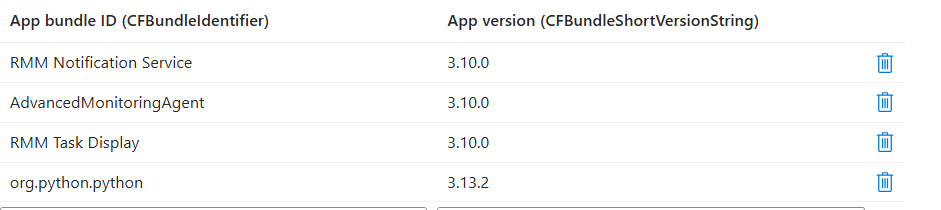
- These days, the Detection rules tab should automatically detect the contents of the uploaded package and present you with Included apps (see the first screenshot below). Otherwise you can use the identifier and version from the pkgbuild command as the App bundle ID.

Create Assignments for your devices, and you're done.